Posted in Roanoke County Schools, Social Networking, Tech Tools

Pinterest Folks to Follow!

Pinterest Logo

By now, many of us have heard of  Pinterest.  For me, it took me awhile to “get it,” but now that I have, it’s been a place I go often for teaching tips, recipes, decorating suggestions, and so on.  There are some great resources out there for teachers!  Here are some of the ones I follow for good ideas:

Here are some suggestions for using Pinterest as a teacher:

If there’s anyone I’ve missed that you enjoy, please leave a post and let me know!

Posted in iPod Touch, Tech Tools

iPod Apps for Your Classroom

I’m loving the way AppsFire allows you to share ipod touch/iphone apps in an easy, friendly, visual way. For those of us who are really looking at ways ipods can impact teaching and learning, this is a great way to share apps we’ve found! Here’s some of the ones I’ve found through various resources…from the teachers I worked with over the summer, from this ipod touch article from Your Tech Weblog , and from conferences. They are mainly elementary and middle school apps (with more for elementary). And…most are free (are 99 cents)!

http://appsfire.com/selection.php?cid=1263569994-1102500451&title=Elementary+and+Middle+School+Apps

Update: I’m adding this widget (it will continue to be updated) to the Resources/Handouts Page of this blog.

Posted in Ideas, Links, Tech Tools, Web 2.0

Wall Wisher

Wall Wisher is a website that allows you to create a virtual wall where “sticky notes” can be added on any topic.  Here’s an example of a Snow Day Wall (feel free to add your own ideas)!  It’s very simple to make and add to a wall, and you can moderate everything that appears on it (making it safe to use with your students).
http://www.wallwisher.com/embed/snow-day
 

Make Your Own Wall

Step 1: visit the Wallwisher website.

wallwisher1

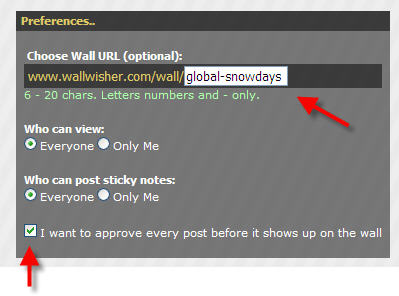
Step 2:  Create a URL for your wall, and choose your preferences.  Make sure to check the box that says “I want to approve every post before it shows up on the wall” if you want to manage posts.

step2

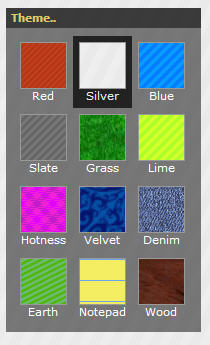
Step 3: Choose a theme for your wall.

step3

Step 4: Choose a picture for the top of your wall, as well as the title and subtitle that will appear at the top.

step5

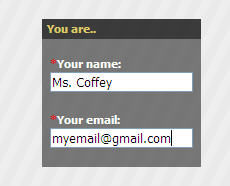
Step 5: Enter your name and email address (use a real one because this is how you will receive a password to login and manage your posts)

step6

Step 6:  Click done.  Your wall is now ready!

Post on a Wall

Step 1:  Double click anywhere and type your comment.  It can only be 140 characters long, but you can link to pictures or videos on the internet.

step8

Step 2: To manage your posts, log in to the site.

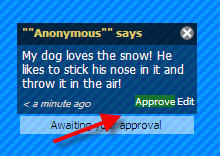
step7

Step 3: Click approve on posts for them to appear.

Other Options

 step9

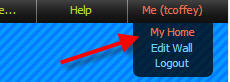
To change your password, Build a New Wall, or View all your walls, click on Me > My Home.

Classroom Use

There’s a ton of ways this can be used in a classroom!

  • Use for KWL charts–have students post stickies about what they know, what they want to know, or what they have learned about a topic.
  • Gather data on a topic (especially great if you want to collaborate with another classroom).
  • Writing sentences (pick a topic, like What I want for Christmas and have students post).
  • Answering questions.  Writing Questions.
  • Birthday, Get Well, or Special Holiday Wall.
  • Facts on a topic.
  • If you have a class blog, you can embed the Wall write on the blog (just like I did above).
  • Post links for students to visit.
  • Link to pictures and videos on a topic
  • Vocabulary–post a word and have students make sentences using that word.
  • Field Trip–have students post what they’ve learned or their favorite parts.
  • Gather strategies for solving a problem.
  • Respond to a novel.
  • Book Reviews.
  • Veteran Honor Wall, Going Green Pledges, Red Ribbon Pledges, etc.

For more ideas, visit Tom Barrett’s Interesting Ways to Use Wallwisher in the classroom.

Posted in Instructions, Roanoke County Schools, Tech Tools

Using Flip Cameras with Movie Maker

flip-video-cameraMovieMakerlogo

There’s two ways to use the Flip Video camera with your Movie Maker software.

First Way–Install Flip Video Software

(Go through the complete process the first time you use your camera with a computer):

  • Plug in your flip video.
  • Choose “View your Videos in Flip Video Software.” (if this option doesn’t already pop up for you, click My Computer > Flip Video Drive > Setup_FlipShhare)
  • Go through the steps to install the Flip Video Software.
  • Now you can export your videos off the flip camera, save them to your computer, or close of out the software altogether. You should also now be able to import videos into Movie Maker.

Second Way–Install the ffdshow Codec

(for lab computers, if you don’t want the flip video software installed, or if the above steps don’t work):

Need to know how to use Movie Maker?  Here’s a Movie Maker Handout.

Now you, and your students, will be able to use your flip video movies in movie maker and create all sorts of great digital stories!  🙂

Posted in Ideas, Salem City Schools, Tech Tools, TechABCs, Web 2.0

Do You Know Your Technology ABC’s?

Flip through the Technology ABC Voicethread below!

  • Which terms/sites/items have you used before?
  • Which ones are new to you?
  • How can you use these things in your classroom?

As you flip through the Voicethread, click on the link to explore more about each “letter,” leave a comment or two if you are familiar with some of the topics and have ideas on how to use them in your teaching , and stay tuned for some more detailed posts!!  I’d also be interested to know if you can think of anything to add.  AND, if you want to learn to use something new in your teaching, I’d love to help!  Leave a comment for that too!

http://voicethread.com/book.swf?b=328148

About this Project

Awhile ago, maybe even this summer, some discussion arose in Twitter and/or Plurk about the idea of a technology ABC poster (I’m sorry, I can’t remember exactly WHO started the discussion to give credit.  If it was you, leave me a comment please).   And through those discussions, Pam Elgin and I came up with the idea of a Technology Word Wall and started adding to the list using things that our teachers might use.  Pam recently worked very hard to create PowerPoint slides for this project on each letter, which you will soon see in our schools’ computer labs.  Meanwhile, I thought it would also be fun to post the final product in virtual form via VoiceThread, complete with links to each of the topics.  Hope you learn something from it!

Update:  Pam has posted the actual powerpoint file for you to download or print slides here!  Thanks, Pam!