Posted in Instructions, Interactive Achievement, Roanoke County Schools

Updates to Interactive Achievement

There have been some changes to the Interactive Achievement Program, the program Roanoke County uses for Formative Assessment.  Luckily, the folks at IA have provided some great handouts to show how to use the updated features.  To find them, login with your IA account.  You will now need to use your whole email address as your login (your password will be the same).

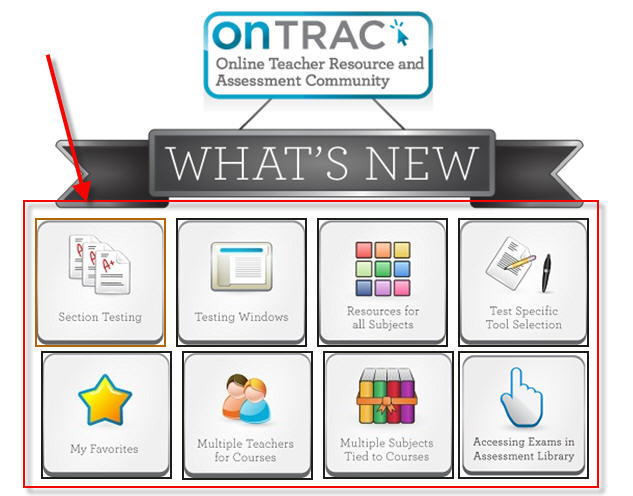
Then, click on “What’s New” in the top right-hand corner.

Next, click on a topic.   A handout will open for the topic.
The ITRTs have also updated the how-to handouts for IA.  You can find them here:

Assessment Library

Assigning Tests

Creating Class Lists

Print Test Session Lists

Reporting

Starting and Ending a Test


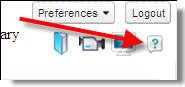
Finally, don’t forget that our system pays for support from IA, and it’s available to anyone who needs it.  Just click the ? in the top right corner.
 

Posted in Instructions, iPad, iPod Touch, Roanoke County Schools

iPad and iPod Touch Handouts

Some of our special education teachers will be receiving iPads or iPod Touches over the next few weeks set up by Devlopease, a company from Radford, VA who specializes in writing apps for special needs children, setting up devices, and training people on using them.  If you are one of the teachers receiving a device, here are some handouts that might help you navigate some of the ins and outs of using your device with Roanoke County Schools’ network and computers.
http://www.box.net//static/flash/box_explorer.swf?widget_hash=06xi3iyzxa&v=0&cl=0&s=0

Posted in Instructions, Roanoke County Schools

Increasing “Writing” Time in Voicethread

Blenna Patterson just emailed me the solution to a problem that has been baffling me for awhile now…how to keep the writing from fading in Voicethread.  I am posting it here in case others have similiar problems.  The solution is so easy.  Here’s a Voicethread showing how:

http://voicethread.com/book.swf?b=711

Pretty much all you need to do is click the center button in the color palette before you start drawing!!

Voicethread Color Palette

If you haven’t tried out Voicethread, it’s a wonderful online digital storytelling tool that can be used across subject areas!

Posted in Instructions, Roanoke County Schools, Tech Tools

Using Flip Cameras with Movie Maker

flip-video-cameraMovieMakerlogo

There’s two ways to use the Flip Video camera with your Movie Maker software.

First Way–Install Flip Video Software

(Go through the complete process the first time you use your camera with a computer):

  • Plug in your flip video.
  • Choose “View your Videos in Flip Video Software.” (if this option doesn’t already pop up for you, click My Computer > Flip Video Drive > Setup_FlipShhare)
  • Go through the steps to install the Flip Video Software.
  • Now you can export your videos off the flip camera, save them to your computer, or close of out the software altogether. You should also now be able to import videos into Movie Maker.

Second Way–Install the ffdshow Codec

(for lab computers, if you don’t want the flip video software installed, or if the above steps don’t work):

Need to know how to use Movie Maker?  Here’s a Movie Maker Handout.

Now you, and your students, will be able to use your flip video movies in movie maker and create all sorts of great digital stories!  🙂