Posted in iPad, Projects, Reading, Roanoke County Schools

Figurative Language with Second Grade

For the past few days, I’ve had the chance to work with a reading group in Mrs. Allen’s Class.  This group of students had read the book, Punished by David Lubar.  I had never read this book, but the kids LOVED it and were so excited to tell me about it.  The main character of the story is “punished” when talking back to the reference guy in the library and has to find different types of figurative language to lift the magical punishment.  The book covers types of figurative language (oxymorons, palindromes, anagrams, and puns).  Mrs. Allen wanted her students to practice creating (or finding) these types of words.

After brainstorming with the group of students, we decided that they would make a virtual poster (using iPads) containing an example of each word.  Students used the iPads to research and take (or find) pictures of the different word types.  As they went along, they kept a list of the examples they found so they would be ready to create their poster.

On day two, students used one of my favorite apps, PicCollage, to create their figurative language posters.  They were given this sheet to help them.  Below are the posters they created.
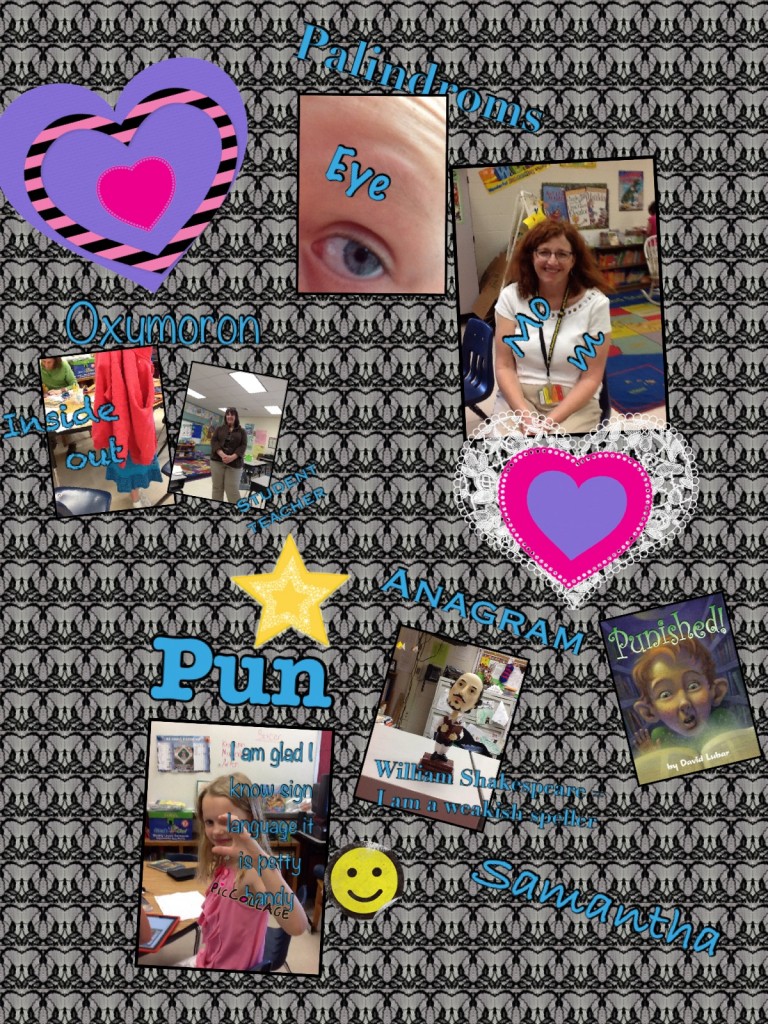
 

They did such a great job.  I had a blast watching their excitement over the project. Way to go Mrs. Allen’s Class!

Posted in Computer Lab, Fun, Roanoke County Schools, Tech Tools

Basic CTRL Key Shortcuts

We have these basic shortcuts hanging in our computer lab, and we teach students to use them when needed.  There are many more, but these are basic ones students find fun using.  If you want a list of them in Word Format, here it is: Basic CTRL Key Shortcuts

CTRL+C (Copy)

CTRL+X (Cut)

CTRL+V (Paste)

CTRL+A (Select All)

CTRL+Z (Undo)

CTRL+Y (Redo)

CTRL+O (Open)

CTRL+N (New)

CTRL+H (Hide)

CTRL+F (Find)

CTRL+P (Print)

CTRL+Q (Quit)

CTRL+U (Underline)

CTRL+B (Bold)

CTRL+I (Italic)

CTRL+Shift+> (BIG Text)

CTRL+Shirt+< (Little Text)

Posted in Instructions, iPad, Projects, Roanoke County Schools

Getting Pictures from School iPads to Your Computer

Did you know you can transfer content from the school iPads right to your computer (with no plugs)?  Using the dropbox app, it’s easy and simple.

In order to have content transferred directly to your computer, you will first need to install dropbox on your computer.  Be careful, though.  Roanoke County Teachers will want to make sure  it is installed to sync to your desktop and NOT your My Documents folder.  If you need help with this part, I’ll be glad to install it for you. 🙂  Let me know you plan to do this, and I”ll send you an invite for our school’s student work folder.

When your students create a project on the iPads, have them save it, if possible, to the camera roll (or export as .jpg, or export to photos…it could be worded differently in different apps).  Then have the students open the dropbox app and upload the picture to their grade level’s folder.  Below are step by step directions. It’s very easy, and once you show the students, they will be able to do this on their own!

Check out How to Use Dropbox on School iPads by Tina Coffey on Snapguide.http://images.snapguide.com/static/js/embed/script.min.js


By the way, for those of you who like such things, the guide above was made with a free app called Snapguide. It was so easy and quick!

Posted in Blogs and Blogging, iPad, Projects, Reading, Roanoke County Schools

More Popplets!

Students in Mrs. Mulvaney and Mrs. Downey’s Language Arts Class are at it again!  This time they created Cause and Effect Popplets about the book Rosa Parks: Freedom Rider.   Many of them blog with different teachers, but you can see their work by clicking on the links below.

They were excited to learn how to post their work to their own blog too.  Keep an eye out for more projects by this class!