Posted in Projects, Roanoke County Schools

How To Stories…with a Digital Twist!

What do Purple Cows, Nachos, and 3-D Robots have in common? They’re all things YOU can learn how to make, just by watching a simple Digital Story! Yep, so easy even a Third Grader could do it…actually, they did! And they created these digital stories to show YOU just how easy it is! Here’s an example:

http://vimeo.com/moogaloop.swf?clip_id=8852696&server=vimeo.com&show_title=1&show_byline=0&show_portrait=0&color=00ADEF&fullscreen=1

http://vimeo.com/moogaloop.swf?clip_id=8852838&server=vimeo.com&show_title=1&show_byline=0&show_portrait=0&color=00ADEF&fullscreen=1

So, how did they do it?

First, Mrs. Devlin worked with her students on writing expository “How To” paragraphs. Students then used their paragraphs to create a storyboard for their digital stories. Then they brought in supplies and had “picture day.” During this time, students followed their storyboards and took pictures of the step-by-step process of making their creation. The digital pictures were loaded on the computers in the lab, and students then used PhotoStory to finish their projects. It was interesting to listen to their problem solving skills as they followed their own directions…and even as they created their Digital Stories. Lots of learning took place, and the end product turned out great!

Check out all the projects here:
Digital “How To” Stories

Posted in iPod Touch, Tech Tools

iPod Apps for Your Classroom

I’m loving the way AppsFire allows you to share ipod touch/iphone apps in an easy, friendly, visual way. For those of us who are really looking at ways ipods can impact teaching and learning, this is a great way to share apps we’ve found! Here’s some of the ones I’ve found through various resources…from the teachers I worked with over the summer, from this ipod touch article from Your Tech Weblog , and from conferences. They are mainly elementary and middle school apps (with more for elementary). And…most are free (are 99 cents)!

http://appsfire.com/selection.php?cid=1263569994-1102500451&title=Elementary+and+Middle+School+Apps

Update: I’m adding this widget (it will continue to be updated) to the Resources/Handouts Page of this blog.

Posted in Ideas, Links, Tech Tools, Web 2.0

Wall Wisher

Wall Wisher is a website that allows you to create a virtual wall where “sticky notes” can be added on any topic.  Here’s an example of a Snow Day Wall (feel free to add your own ideas)!  It’s very simple to make and add to a wall, and you can moderate everything that appears on it (making it safe to use with your students).
http://www.wallwisher.com/embed/snow-day
 

Make Your Own Wall

Step 1: visit the Wallwisher website.

wallwisher1

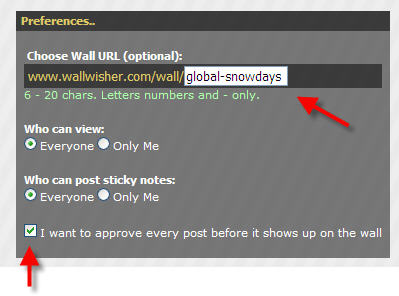
Step 2:  Create a URL for your wall, and choose your preferences.  Make sure to check the box that says “I want to approve every post before it shows up on the wall” if you want to manage posts.

step2

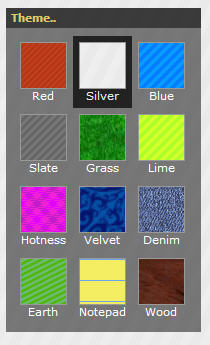
Step 3: Choose a theme for your wall.

step3

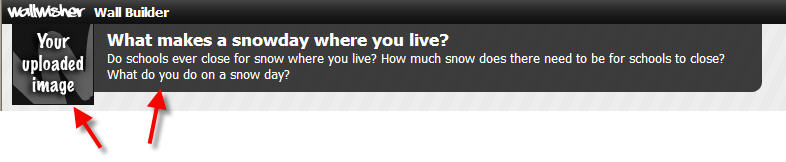
Step 4: Choose a picture for the top of your wall, as well as the title and subtitle that will appear at the top.

step5

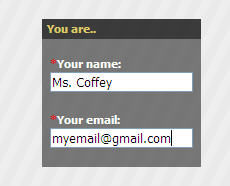
Step 5: Enter your name and email address (use a real one because this is how you will receive a password to login and manage your posts)

step6

Step 6:  Click done.  Your wall is now ready!

Post on a Wall

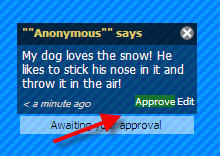
Step 1:  Double click anywhere and type your comment.  It can only be 140 characters long, but you can link to pictures or videos on the internet.

step8

Step 2: To manage your posts, log in to the site.

step7

Step 3: Click approve on posts for them to appear.

Other Options

 step9

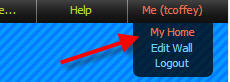
To change your password, Build a New Wall, or View all your walls, click on Me > My Home.

Classroom Use

There’s a ton of ways this can be used in a classroom!

  • Use for KWL charts–have students post stickies about what they know, what they want to know, or what they have learned about a topic.
  • Gather data on a topic (especially great if you want to collaborate with another classroom).
  • Writing sentences (pick a topic, like What I want for Christmas and have students post).
  • Answering questions.  Writing Questions.
  • Birthday, Get Well, or Special Holiday Wall.
  • Facts on a topic.
  • If you have a class blog, you can embed the Wall write on the blog (just like I did above).
  • Post links for students to visit.
  • Link to pictures and videos on a topic
  • Vocabulary–post a word and have students make sentences using that word.
  • Field Trip–have students post what they’ve learned or their favorite parts.
  • Gather strategies for solving a problem.
  • Respond to a novel.
  • Book Reviews.
  • Veteran Honor Wall, Going Green Pledges, Red Ribbon Pledges, etc.

For more ideas, visit Tom Barrett’s Interesting Ways to Use Wallwisher in the classroom.

Posted in Projects, Roanoke County Schools

Famous People Poetry Voicethread

First of all, I cannot take any credit for any aspect of this voicethread.  I did not help with it at all, but it’s so good, and such a great example, I have to share it!   It was done by Mrs. Hudson’s 5th Graders at Clearbrook.  They wrote poetry about a famous people and used voicethread to record their poems.  Mrs. Hudson taught a few students how to use Voicethread, and they helped their classmates record on one computer in the back of the room.  After everyone had recorded, they were able to post the final product on their class blog! What a great project, and what a great way to use technology in the classroom!

http://voicethread.com/book.swf?b=756512

Posted in Blogs and Blogging, Roanoke County Schools, Web Presence

Do You Have a Class Website?

I believe that in today’s world of technology every teacher should have a web presence–a way for parents, students, and others to learn more about their class.  If you don’t, here are some quick and easy ways to start a class webpage.  Once you have it finished, be sure to let your schools’ webmaster know so they can link to your site from your school’s website.  Also let your parents know.  You’ll be amazed at how happy they will be to have a way to find out information about their child’s classroom!  A class site will also give you space to show off all those great technology projects you’ve been doing this year!!

So here’s a few of my favorites:

Blogging

If you want to blog (great if you plan on updating content frequently), here’s some great choices.  I’ve included examples, but please know you don’t have to be that elaborate.  It’s fine to start off with just text! 

Edublogs 

Edublogs allows you to create a teacher blog (like this one).  You have lots of options for themes, and while you can stick to text, you can also embed lots of things into your blog.  *This does cost $40 to turn off ads, but I may be able to help with this.  Let me know if you choose this route.*  Here’s an example of a 2nd grade class blog using edublogs 

Classblogmeister 

Classblogmeister is my favorite way to blog with students because it’s free and very, very safe.  It’s a little clunky if you are just creating a teacher blog, but super for kids. Here’s an example of a Kindergarten class blog using classblogmeister.

Blogger

Blogger is not my favorite way to create a blog because of the “Next Blog” button at the top of site which could lead your students to who knows what…but there are ways to turn that off.  And it’s really easy.  If you want to do a blogger blog, let me know, and I’ll give you the directions for disbling that pesky button at the top.  Here’s an example of a Kindergarten class blog using blogger.

Wikis and Website Builders

Want something a little more permanent?  Try a wiki or a website:

Wikispaces

Want more of a static webpage?  Try a wiki!  Wiki means “quick” in Hawaiian, and wikis are quick ways to make a website.  My favorite is wikispaces.  They offer ad free wikis for teachers.  Here’s an example of a fourth grade classroom page created with wikispaces.

Weebly

Weebly is a super simple webpage creator.  I know lots of teachers that use this service!  Here’s one example of a classroom website made with Weebly.

Google Sites 

Google sites also lets you create a simple webpage.  All you need is a google account (which is great to have for lots of reasons!)  Here’s an example of a classroom site made with google sites.

Here are some other sites I’ve briefly viewed, but have not used extensively.  If you choose any of these, check and see where links on these pages go, and check for ads.  They appear to be okay at first glance, but it’s always good to check frequently since webservices sometimes change.
Yola

SchoolRack

ClassJump

Hipero