By now, many of us have heard of Pinterest. For me, it took me awhile to “get it,” but now that I have, it’s been a place I go often for teaching tips, recipes, decorating suggestions, and so on. There are some great resources out there for teachers! Here are some of the ones I follow for good ideas:
There have been some changes to the Interactive Achievement Program, the program Roanoke County uses for Formative Assessment. Luckily, the folks at IA have provided some great handouts to show how to use the updated features. To find them, login with your IA account. You will now need to use your whole email address as your login (your password will be the same).
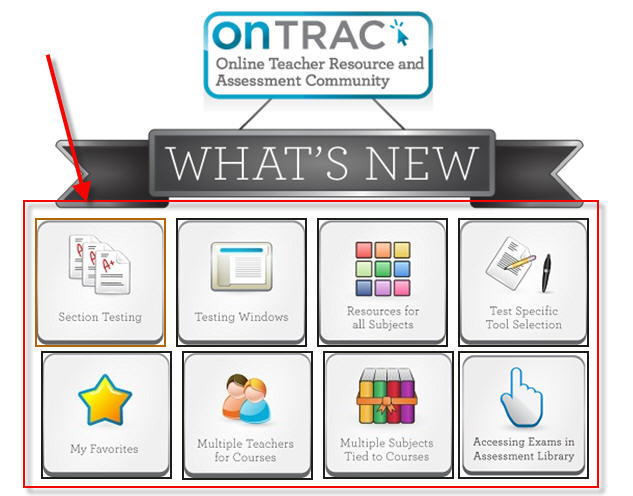
Then, click on “What’s New” in the top right-hand corner.
Next, click on a topic. A handout will open for the topic.
The ITRTs have also updated the how-to handouts for IA. You can find them here:
Watch on-line streaming videos of children’s books read aloud by celebrities! Check out the Read to Me Website!
On this site, children’s storybooks are read aloud by celebrities and storytellers. Books are available for watching and there are even lesson plans to help you incorporate the Read-To-Me videos. You will see such stories as Fancy Nancy, Duck Soup, Excuse Me, Chrysanthemum, and even Hooray Hose (with Sign Language). Very cool!
The newest edition to some of the fascinating resources in Google Maps/Earth, is the ability to tour the Ocean, complete with reef wildlife. To explore some of these locations, you will be using “Street View.” Here’s a quick video on how to use it:
Preschool Teachers and Primary Special Education Teachers received a new program, Letters Alive, to use with their students! It’s pretty cool. See a video below that talks about it:
When trying to implement this program, we discovered a couple of things that may help others, so I’m sharing them here. The most important thing we learned was that this program needs an integrated video card with lots of memory in order to work properly. If you descide to use it, it’s very important to work with Logical Choice before purchasing anything to make sure the computers you plan to run it on will work.
If you are one of the teachers that was lucky enough to recieve a kit, here are some things that may help you out!
Letters Alive Tips and Tricks
Use your cart for Letters Alive. Keep the document camera with the cart and leave it set up.
Make sure mat is flat as possible (store rolled, not folded).
The neoprene Mat is washable (do not put in dryer).
You can wipe cards with damp cloth but DO NOT LAMINATE or submerge.
Make sure the dongle and document camera are plugged in.
Keep the document camera as high as possible.
Use training videos in the software.
Bring alphabet card in from the right (up high).
Be careful not to cover cards.
The program runs in Full Screen Mode. Use Esc to exit and Alt+Enter to go back to full screen mode.
If you are having Document Camera isses:
Choose Letters Alive
Choose Letters Alive Camera Setup
Make sure auto focus is unchecked
There are three different modes for Letters Alive:
Letters Alive Mode
Introduces Letters
Uppercase and Lowercase
Sentences
Root Word Mode
Sounding out letters one at a time.
Uppercase and Lowercase practice
T-Shirt Mode
This works with Letters Alive T-shirts.
Ideas for the Classroom:
There are lots of ideas for using this program in the classroom on the Logical Choice Website . Check them out here!



 Teaching with Technology